Description
SPECIFICATIONS
Ansi Lumens: 400
Battery: no
Bluetooth-compatible: Yes
Brand Name: H96 MAX
Brightness: 3000 Lumens
Built-in Speaker: Yes
Category: Projectors
Certification: CE,FCC,RoHS,UL
Choice: yes
Contrast Ratio: 1000:1-2000:1
Display Size: ≤13.5
Function: Video Playback,Others
High-concerned chemical: None
Home Theater Projector: yes
Inbox adaptor: Yes
Input/Output: 3.5mm Earphone Out,USB
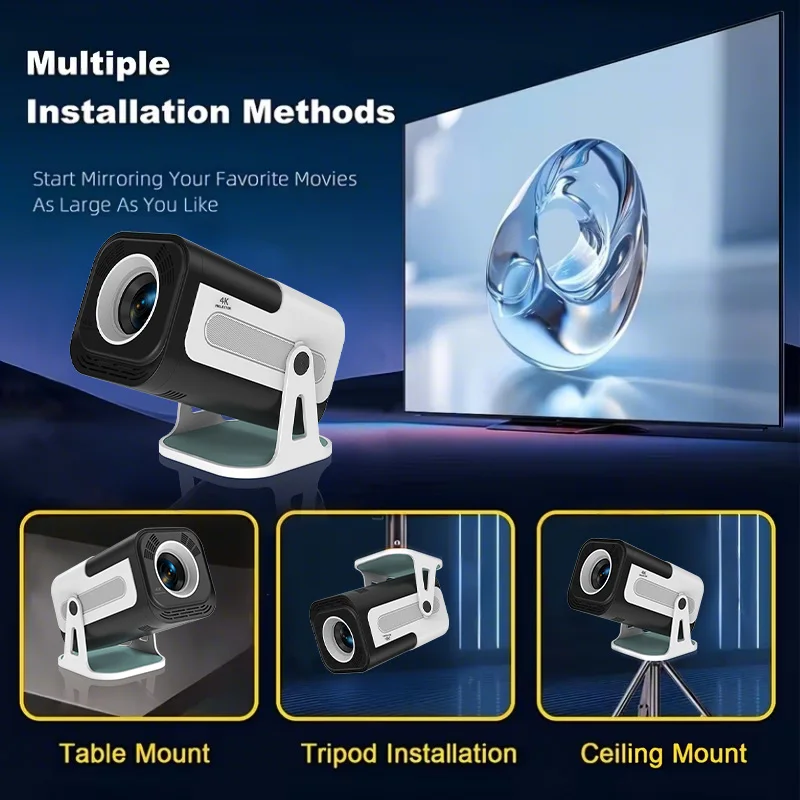
Keystone Correction: Electronic Correction,Auto Correction
Light Source: LED
Optical Resolution: 1280x720dpi
Origin: Mainland China
Portable: Yes
Power (W): 45
Power Source: Ac,Ac
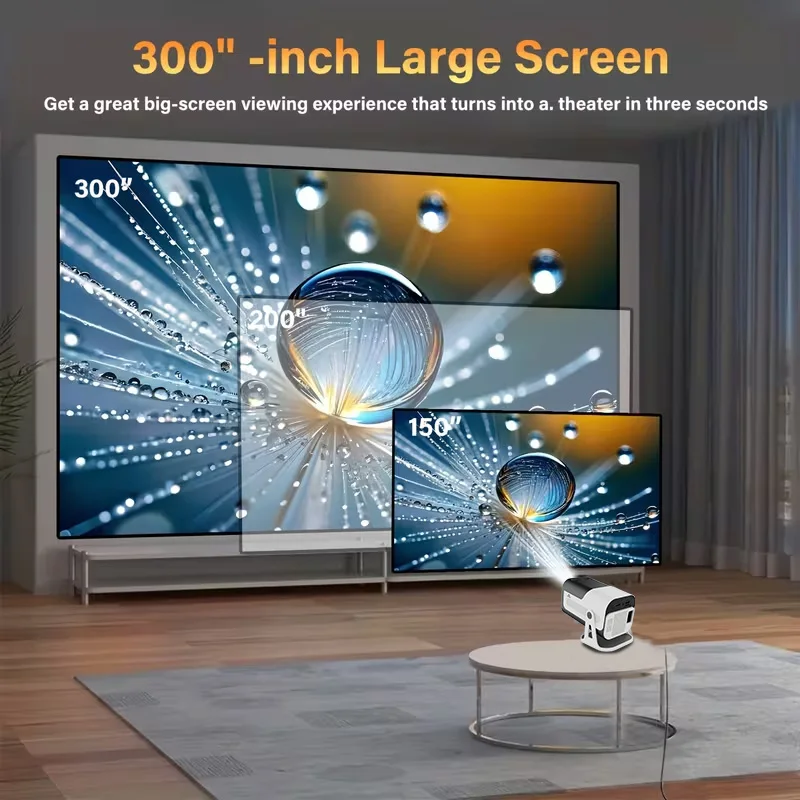
Projection Distance: 0.5-6m
Projection Technology: LED
Projective Mode: T4
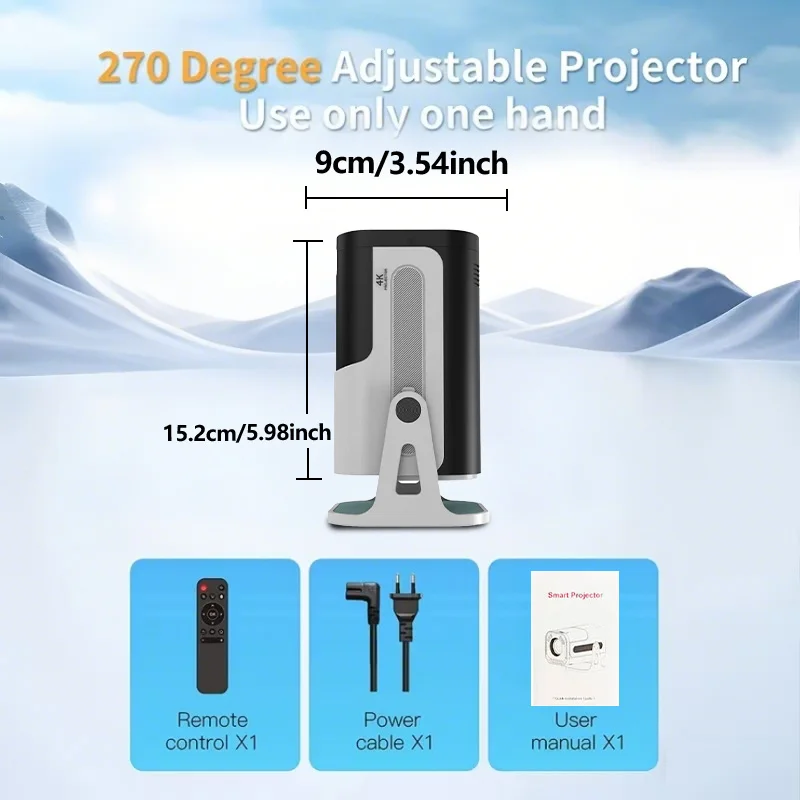
Remote controller included: Yes
Screen Scale: 4:3/16:9
Structure: With a flat panel screen
System: Android
Type: Mini
Use: Entertainment Projector
Voltage range: High voltage (50-1000V DC, 75-1000V AC)
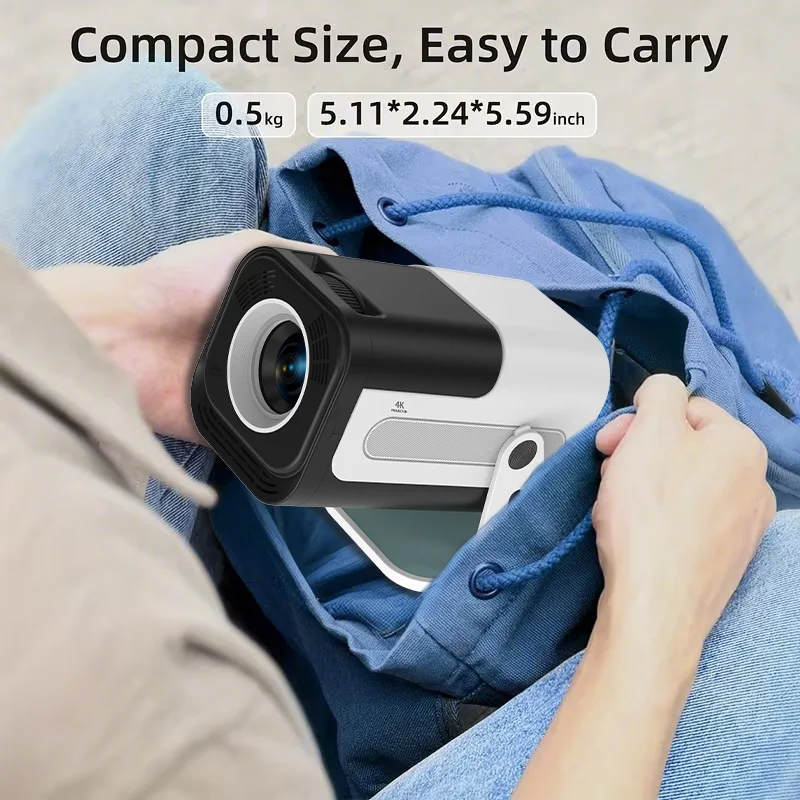
Weight: 0.8kg
Zoom: x 2.4
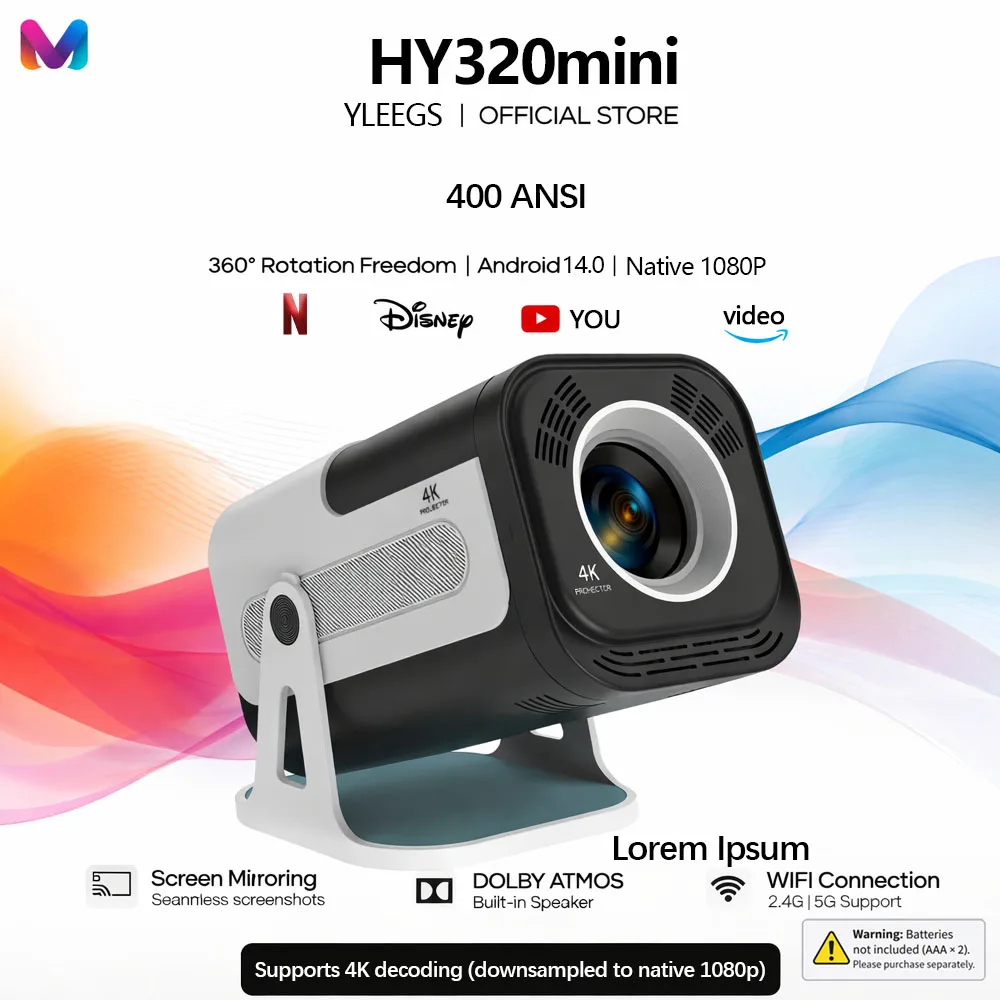
OS: Android 13.0
CPU: Allwinner H713 Quad-core ARM Cortex-A53
GPU:Mali-G31supports OpenGL ES3.2,and OpenCL2.0
Product Features
👍 Native 720P Full HD Resolution
If you have a high requirement for clarity of projector, this Full HD projector must be your favorite. With a resolution of 1920*1080, a brightness of 10000Lumens, and a dynamic contrast ratio of up to 10000:1, the projector shows a more clearer, brighter, and richer picture
👍 BT 5.2 Function and HiFi Stereo Speakers
The projector's built-in dual HiFi stereo surround speakers restores the original audio fidelity, allowing you to experience an excellent listening experience without connecting external speakers. The BT projector can connect headphones, speakers and other audio equipment through it, and you can experience the cinema-level surround effect at home.
👍 150'' Giant Screen
The portable projector provides a 30-300-inch projection display at a projection distance of 1-4 m, with a 16:9 aspect ratio, optimal viewing in both home theaters and outdoor movies!
👍 No latency Ultra-fast WiFi 6 2.4G/5G Dual Band WiFi
The projector uses industry-leading WiFi 6 technology, the transmission is faster and more stable, enjoy a smooth viewing and gaming experience! You can wireless screen mirroring through Miracast and Airplay
❗ Pls note our projector can support 4K video decode, but output video highest resolution is 1920*1080P
Product Description

Question & Answer
Q1: Is the projector compatible with Google smartphones?
A: Due to mirroring protocol issues of Motorola and Google phones, it prohibits screen mirroring directly from the projector. You need to have a Google Chromecast to connect it.
Q2: How can I access Netflix, Prime Video, and YouTube?
A: The HY320mini comes with officially licensed Netflix, Prime Video, and YouTube pre-installed. No TV stick is required—simply press a button on the remote control to launch these apps quickly and easily.
Q3: Can I download other apps?
A: The HY320mini runs on Whale OS, and you can download apps directly from the App store. If you can't find a specific app, please contact our support team for assistance.
Q4: How do I screen-mirror iOS devices to the HY320mini?
A: 1.Go to Settings > Device Preference > Whale OS Cast > TV casting
2.Use the AirPlay feature on your iOS devices, ensuring both devices are connected to the same WiFi network
3.Copyrighted content from apps like of Disney+ cannot be mirrored or cast
Q5: How to Get a Squared Image?
A: 1. Align the projector properly so the lens faces the screen directly.
2. Go to Settings > Lens > Reset keystone correction data.
3. If needed, manually adjust: Settings > Lens > Keystone Correction > Turn Off Auto Keystone > 4-Corner Correction.
Q6: What Should I Do if the HY320mini Projector Can't Connect to Wi-Fi?
A : 1. Verify the time zone under Settings > Device Preferences > Date & Time.
2. Switch to another Wi-Fi network or use a mobile hotspot.
3. Test both 2.4GHz and 5GHz bands.
4. Reset via Settings > Other Settings > Restore factory settings.
Q7: How Can I Customize the Picture Settings (Brightness, Contrast, etc.) on the HY320mini Projector?
A: Press the "P MODE" button to customize your picture settings via Picture Mode > User > Personalized Picture Settings


